TrueFrame / For iOS developers
App screenshots, ready for the next release.
Go from your app’s screens to a consistent App Store listing. Capture across devices and languages, edit the presentation, and export a set you can use again when your app changes.
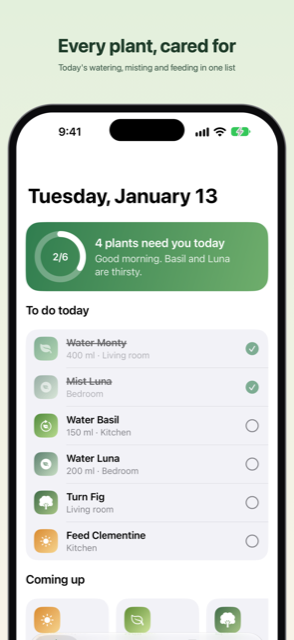
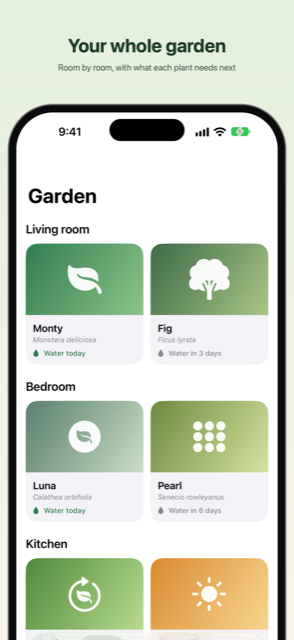
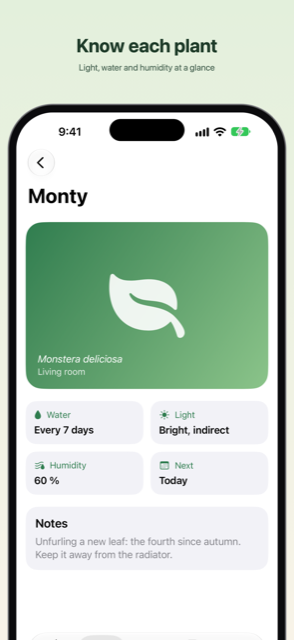
Capture → Edit → Export
Keep the whole listing together.
Screens, devices, languages and appearances belong to one project. Your capture flows and presentation stay together for the next round.
01 / Capture
Start with the real app.
Open screens through deep links, or record taps, waits and vertical scroll-to steps in the simulator. Save the flow and run it across your chosen devices, locales and appearances.
02 / Edit
Give the set a common style.
Bring captures into a listing template. Adjust captions, backgrounds and fixed device poses, with overrides for individual frames and devices. Preview a different language or device as you work.
03 / Export
Prepare the handoff.
Render listing images and export them into fastlane or ButterKit folder layouts. Export checks image dimensions and flags missing captures or unresolved review items. You still review the images and upload them to App Store Connect.
A project to explore
Meet Fernwood.
The included plant-care demo has 24 captures: six screens on iPhone and iPad, in English and German. Open its listing, change a caption or background, render, then export. Exploring and editing these existing captures needs no Xcode.
Sample edits are kept in a working copy. You can understand how a complete project fits together before setting up capture for your own app.
What capturing your app requiresWhen the app changes
Refresh the screens. Keep the work.
A saved route to each screen
Reuse flows and rerun selected captures instead of rebuilding the whole set. Capture status, failure details and logs help you find changed screens or steps that need attention.
Languages side by side
Switch device, locale and appearance within the project. Captions can have localized text; the app being captured still needs its own translations and suitable demo data. TrueFrame does not translate your app.
Files you can return to
Projects keep capture settings and templates in readable files alongside their images. The Mac app and the trueframe command use the same project format, so saved work can also be run from a terminal.
Before you start
Your Mac. Your app. Your screenshots.
Apple Silicon · macOS 26.0 or later
Exploring and rendering
The sample’s existing captures can be edited, rendered and exported without Xcode. TrueFrame requires an Apple Silicon Mac running macOS 26.0 or later.
Capturing your own iOS app
You need Xcode, an installed iOS simulator runtime and a simulator build of your app. Use an app already installed on a simulator, or provide a simulator .app build. An App Store download or device build is not a simulator build. TrueFrame does not build your Xcode workspace for you.
Reaching the right screen
Deep links are a useful starting point. Recording and steps that read or interact with the accessibility tree require AXe, a separate simulator automation tool. Stable accessibility identifiers help flows survive layout and language changes. Text entry and complex gestures are not currently recorded, so sign-in and system prompts may need manual preparation.
State still needs care
Saved app and app-group containers can restore local demo data, but do not include Keychain sessions or server state. Authentication can expire. Changed screens, builds and runtimes may need flow repairs and fresh captures. Automated checks help find problems; they do not replace your visual review.
Make it yours
Start with a complete project.
Open Fernwood to explore the workflow, then use the same project structure for your own app’s screens, languages and listing design.
Have a question about the workflow or compatibility?
Contact Taperlark